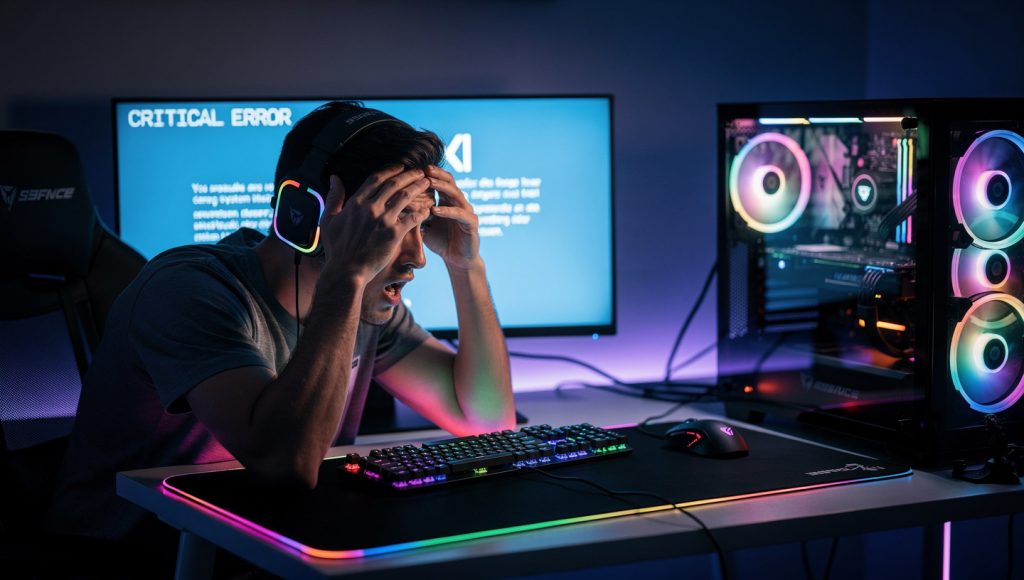
You’re 45 minutes into a boss fight. Zero saves. Then — black screen. Desktop. The game is gone. Again.
If you’re reading this, something crashed. Recently. We get it — there are few things more maddening in gaming than a PC that refuses to stay stable. The worst part? The cause is almost never obvious. It could be your GPU running too hot, a corrupted game file, a Windows update that snuck in overnight, or RAM that’s been quietly unstable for months.
This guide walks you through every real reason PC games crash — from the most common hardware culprits to the sneaky software conflicts most guides skip right over. No fluff. Just what’s actually causing the problem and how to fix it.
1. Hardware Issues — The Usual Suspects
Before blaming the game or Windows, check your hardware first. The majority of random, hard-to-reproduce crashes trace back here.
Overheating: The Silent Crash Trigger
Thermal throttling is your GPU or CPU automatically slowing itself down when it gets too hot — and if it gets hot enough, the system just shuts off to protect itself. This is one of the most common reasons games crash after 20–30 minutes of play (the classic “runs fine at first, then dies” pattern).
What to do:
- Download MSI Afterburner or HWiNFO64 and monitor your GPU and CPU temps while gaming.
- GPU should generally stay under 85°C. CPU under 90°C. If you’re hitting those numbers consistently, heat is your problem.
- Clean out dust from your case. Seriously — a clogged heatsink or dust-blocked intake fan can raise temps by 15–20°C.
- Reapply thermal paste on older systems (3+ years). It dries out and loses effectiveness.
- Improve airflow: check that your case fans are set up with intake at the front/bottom and exhaust at the rear/top.
PSU: Not Enough Power Under Load
Modern GPUs like the RTX 4080 can spike to 400W+ during heavy scenes. If your power supply unit (PSU) is undersized, aging, or cheaply made, it can’t deliver clean power under load — and the system crashes, reboots, or simply cuts off.
- Use a PSU calculator (PCPartPicker has a good one) to verify your supply headroom.
- If your PSU is over 5 years old, consider replacing it — capacitors degrade and output becomes unstable.
- Check that all GPU power connectors are fully seated. A loose 8-pin connector causes crashes that look identical to software bugs.
RAM Instability
Bad or unstable RAM is one of the trickiest causes to diagnose because it mimics almost every other crash type. Games crash to desktop, sometimes with a memory error, sometimes with nothing at all.
- Run MemTest86 overnight (it boots from USB and tests RAM outside of Windows).
- If you have two sticks, test one at a time in different slots to find a faulty stick or slot.
- Check your RAM is seated in the correct slots — most motherboards want sticks in slots 2 and 4 (check your manual).
2. Software Conflicts — The Sneaky Ones
Your hardware could be perfectly healthy and your games still crash. Software conflicts are more common than ever, especially with how aggressively Windows updates and how many background apps fight for system resources.
Outdated or Corrupted GPU Drivers
This is probably the single most common software cause. A GPU driver is a massive, complex piece of software. New driver versions sometimes introduce bugs that crash specific games — and old drivers miss fixes that newer games require.
- Update through NVIDIA App, AMD Adrenalin, or Intel Arc Control depending on your GPU.
- If you suspect a driver is the problem, do a clean install using DDU (Display Driver Uninstaller) in safe mode, then reinstall fresh.
- For NVIDIA users: if a new driver breaks stability, you can roll back to a previous version from the NVIDIA driver archive.
DirectX and Visual C++ Runtime Issues
Most games rely on DirectX 12 (or DX11) and several Visual C++ redistributable packages. If these are outdated or partially corrupted, you’ll get crashes — often with no error message at all, or a cryptic “dxgi.dll” error.
- Run Windows Update and let it fully install pending updates — many DirectX components ship through Windows Update.
- Reinstall Visual C++ redistributables from Microsoft’s official download page (install both x64 and x86 versions of each year).
- Try forcing the game to run in DX11 mode if it supports both — some games are more stable on DX11 than DX12.
Background Apps and Overlays
Discord, GeForce Experience, Xbox Game Bar, MSI Afterburner’s OSD, Steam overlay, antivirus software — all of these hook into running games. Individually they’re usually fine. Combined, they can cause crashes, especially in DirectX 12 or Vulkan titles.
- Disable all in-game overlays one by one and test stability.
- Add your games folder to your antivirus exclusion list — AV software scanning game files in real-time can trigger crashes.
- Use Task Manager to kill unnecessary background apps before launching demanding games.
Speaking of instability on different platforms — if you’re also gaming on mobile and dealing with app issues, here’s where to download free mobile games safely without the malware headaches that often come with sketchy APK sites.
3. Game-Specific Factors
Sometimes the problem isn’t your PC at all. The game itself is the issue — whether it’s corrupted installation files, a bad patch, or a game that’s just notoriously unoptimized.
Corrupted Game Files
A failed update, a drive error during download, or even a power cut mid-install can leave game files corrupted. The game launches fine, but crashes 10 minutes in at the same point every time.
- Steam: Right-click the game → Properties → Local Files → Verify integrity of game files.
- Epic Games: Click the three dots next to the game → Manage → Verify.
- GOG: Click the game → More → Manage Installation → Verify / Repair.
Run the verification. Even if you think the install is fine — run it anyway. It takes two minutes and catches problems you’d never find manually.
Poorly Optimized Games (It’s Not Always You)
Some games ship in genuinely broken states. You’ll see this when entire communities report the same crash, and the developer is scrambling to push hotfixes. The frustrating truth: sometimes the right answer is to wait for a patch.
- Check the game’s subreddit or Steam discussion boards — if others have the same crash, it’s not your hardware.
- Roll back to a previous version if the crash started after a specific update (some launchers allow this).
- Lower graphical settings as a temporary workaround — settings like Ray Tracing and Shader Cache can trigger crashes in unstable builds.
If you’re into retro gaming where stability is never an issue, it’s worth appreciating how far games have come — the evolution of point-and-click games is a fascinating look at when games just… worked.
Save File and Shader Compilation Issues
Some modern games compile shaders on first run (or first area load). During this process, the game is extremely CPU-heavy and can crash if the system is already stressed. V-Sync can sometimes help here by capping the framerate and reducing GPU load during these spikes.
- Let the game fully compile shaders before jumping in — some games show a progress bar, others don’t.
- Enable V-Sync or use an FPS cap to prevent your GPU from spiking to 99% usage on menu screens.
- Delete shader cache folders if the game allows it and let them rebuild fresh.
If multiplayer games are crashing specifically — not solo — check out our list of the best 2-player co-op games that are reliably stable for online play.
4. Advanced Tweaks That Make a Real Difference
You’ve checked the basics. Now it’s time to dig deeper. These fixes are slightly more technical but frequently solve crashes that nothing else touches.
XMP / EXPO: Is Your RAM Actually Running at Its Rated Speed?
If you bought 3200MHz RAM but never enabled XMP (Intel) or EXPO (AMD) in your BIOS, your RAM is running at a slow default speed — usually 2133MHz or 2400MHz. More importantly, some RAM kits are unstable when XMP is pushed too hard, causing crashes under load.
- Enter BIOS on startup (usually Delete or F2 key) and look for XMP/EXPO under memory settings.
- If XMP is already on and you’re crashing, try disabling it or dropping to a lower XMP profile if your kit offers multiple.
- You can also manually set memory frequency and timings to slightly below the XMP spec for more stability.
Overclocking: More Trouble Than It’s Worth?
An overclocked CPU or GPU that’s pushed too far will crash games. Full stop. The instability might not show up in benchmarks but appears specifically under gaming loads because of how games stress the chip differently.
- If you’re overclocking, reset everything to stock speeds and test. If crashes stop — your OC was the problem.
- If you want to keep the OC, reduce it incrementally and stress test with tools like Prime95 (CPU) and FurMark (GPU).
- GPU power limits: if you’re undervolting your GPU for efficiency, make sure the voltage curve is stable — an undervolt that’s too aggressive crashes just like an overclock.
Windows Page File: Don’t Let It Go to Zero
The Page File is Windows’ overflow RAM — it uses space on your drive when physical RAM fills up. Some people set it to zero thinking it improves performance. For gaming, this can cause crashes when a game tries to allocate more memory than you have.
- Go to System Properties → Advanced → Performance Settings → Advanced → Virtual Memory.
- Set a custom size: Initial = 1.5x your RAM, Maximum = 3x your RAM (so for 16GB RAM: 24576 MB initial, 49152 MB max).
- If you’re on an SSD, the performance penalty of using Page File is negligible.
While you’re sorting out your Windows config — if you’re also looking for game codes and digital purchases, here’s where to purchase digital game codes in Japan safely without region lock headaches.
Crash Fix Checklist — Work Through This in Order
- Check temps while gaming — use HWiNFO64 or MSI Afterburner. GPU under 85°C, CPU under 90°C.
- Clean your PC — dust out heatsinks, check fan operation, reseat GPU if it’s been a while.
- Verify game files — use your launcher’s built-in verification tool.
- Update GPU drivers with a clean install — use DDU first, then reinstall fresh.
- Run Windows Update — let it fully complete, including optional updates.
- Disable overlays one at a time — Discord, Steam, GeForce Experience, Xbox Game Bar.
- Check Event Viewer — look for Kernel-Power or Application errors at crash timestamps.
- Run MemTest86 — let it run at least one full pass (ideally overnight).
- Test XMP/EXPO stability — disable it and test, then re-enable if stable.
- Reset any overclocks — run everything at stock speeds and test for 30+ minutes.
- Set a sensible Page File — don’t leave it at zero or “system managed” on low-RAM systems.
- Check PSU health — if it’s old and crashes happen under heavy load, it may need replacing.
Still Crashing? A Few More Things to Try
If you’ve worked through everything above and the game still crashes, it’s worth a few more targeted checks:
- Check your SSD/HDD health — use CrystalDiskInfo. A failing drive with bad sectors causes crashes that look exactly like RAM or GPU problems.
- Reinstall the game completely — not just verify, but full uninstall and fresh download. If your download was corrupted at the source, verifying won’t catch it.
- Create a new Windows user account and test — sometimes a corrupted user profile causes game-specific crashes.
- Check for BIOS updates — manufacturers release BIOS updates that fix CPU and RAM compatibility issues, especially on newer AM5 and Intel 12th/13th gen platforms.
And if you game with friends and the crashes are ruining your sessions — here are the best multiplayer games to play right now that are known for solid performance and stable netcode.
Or maybe while your game installs (again), you want something to read — the top 15 Minecraft seeds is a good rabbit hole. Minecraft, at least, never crashes. Usually.
The bottom line: PC game crashes almost always have a fixable cause. They’re frustrating precisely because the cause is hidden — but work through the checklist methodically and you’ll find it. Start with thermals and drivers (they’re responsible for the majority of cases), then move through the software and advanced settings. Ninety percent of the time, the answer is in this guide.
Good luck. May your next session run crash-free.